
Introduction
This guide explains how to configure an email account using the IMAP protocol in Microsoft Outlook 2021.
1. Open Microsoft Outlook 2021.
Click File > Add Account
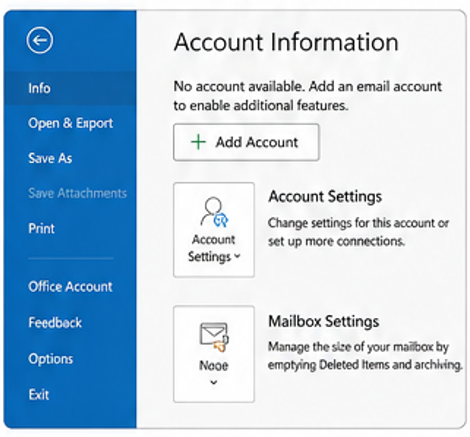
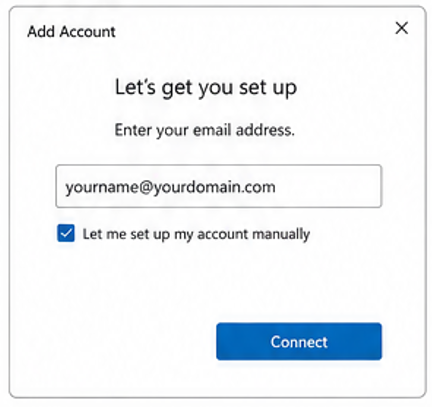
2. Enter your full email address.
Tick Let me set up my account manually and click Connect.
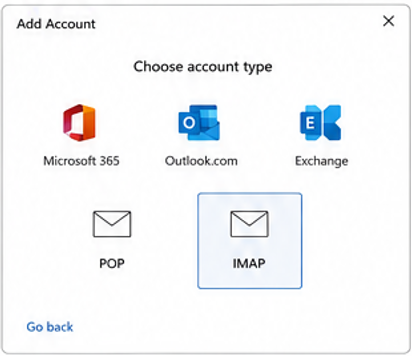
3. Choose IMAP
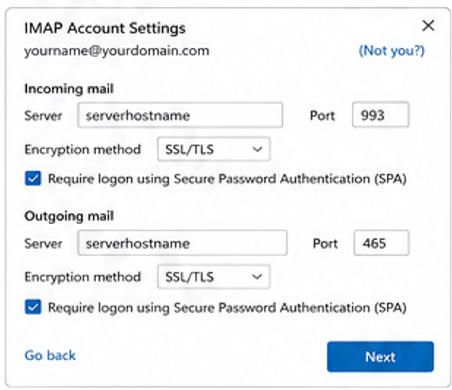
4. Enter the IMAP and SMTP server details.
Click Next
NOTE
Use the above server settings with SSL enabled. If you are using NON-SSL, please use the appropriate ports:
- IMAP (NON-SSL): Incoming Port 143, Outgoing Port 587
- Incoming mail/ outgoing mail : mail.domain.com
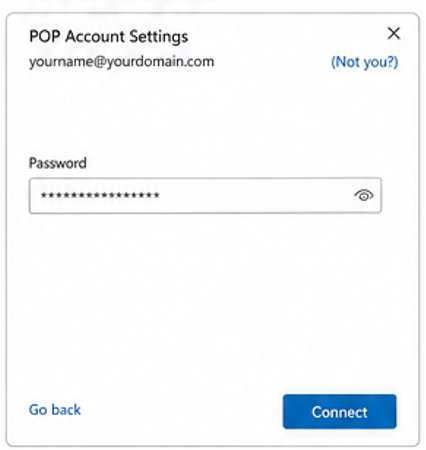
5. Enter your email account password and click Connect.
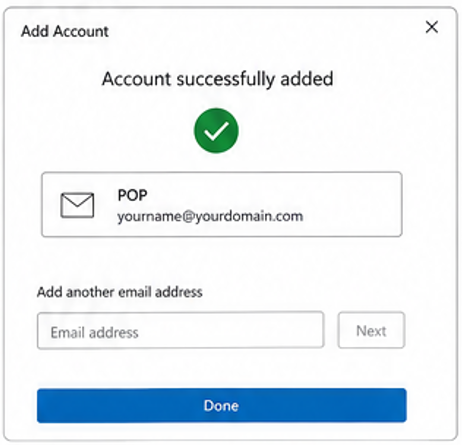
6. The account has been added successfully. Click Done.
Notes
- IMAP keeps your emails synchronized across all your devices. Any changes made in Outlook will also be reflected in your webmail and other email clients.
- If the account cannot be verified, double-check the following:
- Email address and password are correct.
- Incoming and outgoing server names are correct.
- Port numbers and encryption settings match your hosting configuration.
- SMTP authentication is enabled.